



Loading workspace...

Seedream image generator

Generate from text, edit with images, and compare Seedream models

Bring a prompt or a reference image to the Seedream image generator. Seedream 5.5 is selected by default, and you can switch among four models in the same Seedream AI image tool. Reuse the same brief with another model to explore a different interpretation before you choose a direction.

Four Seedream models
Text and image inputs
Seedream 5.5 selected by default
Hero image
Seedream Image Generator

Explore Popular Image Ideas

Two ways to create with the Seedream image generator

A blank canvas and a reference photo call for different instructions. The Seedream AI image tool gives you a workspace for both, so you can choose your input according to what the brief already gives you.

Create a new image from text

Create a new image from text

Tell the Seedream image generator what belongs in the frame, where it sits, and how the scene should feel. Try “A burnt-orange commuter bicycle in a rain-wet plaza at blue hour, warm storefront reflections, wide view, clear silhouette.” For a banner, specify where the headline will sit. For a close crop, describe the detail that should stay sharp. Use the Seedream AI image tool to explore the framing first, then refine the lighting or palette once the composition reads clearly. Save the first prompt you like in the Seedream image generator so you can return to it when a later version changes too much.

Edit an image with a reference

Edit an image with a reference

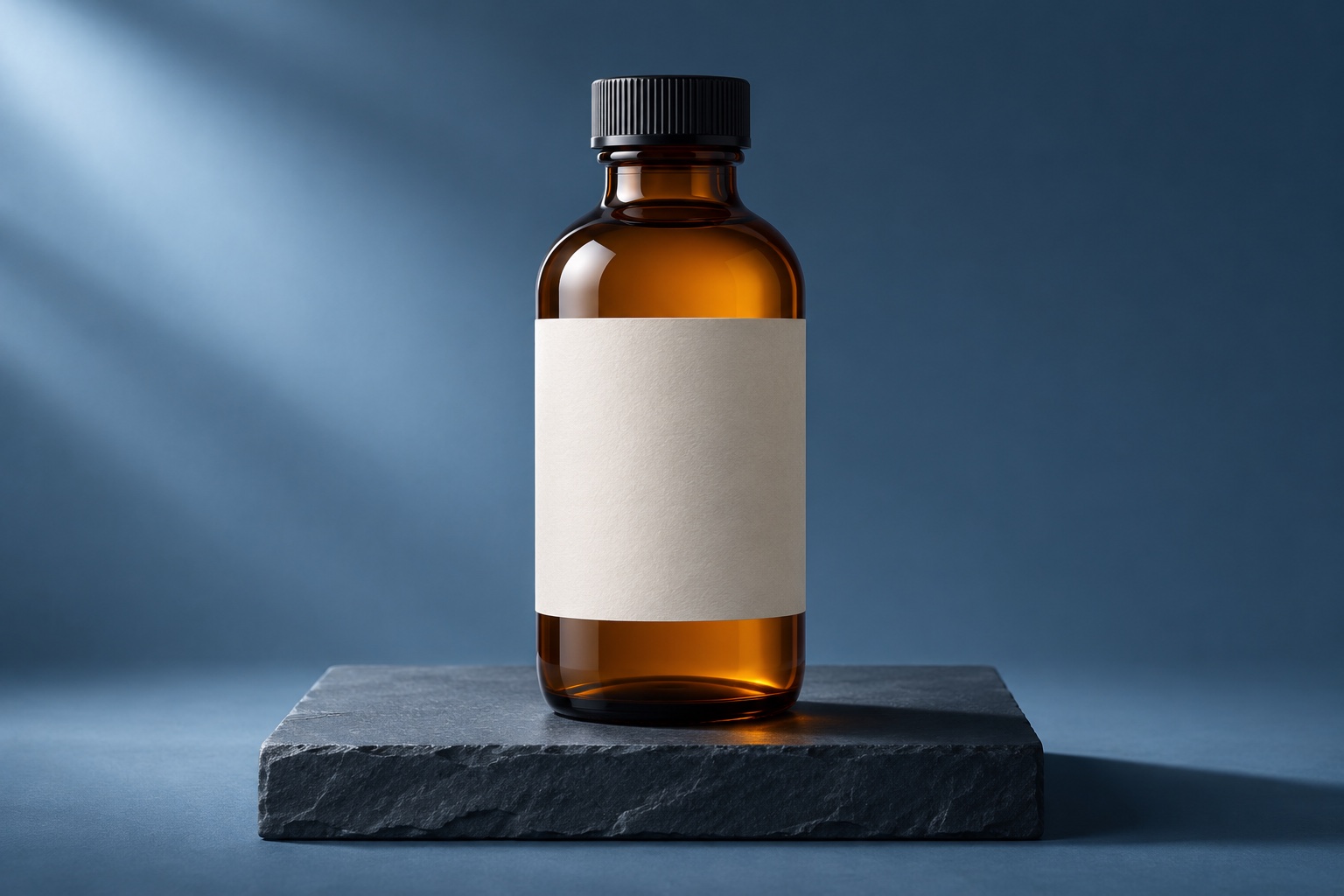
Upload an image and describe the edit in plain language. In the Seedream image generator, try “Move this amber bottle onto a dark slate plinth under cool side light. Keep the bottle shape, cap, and label placement.” Give the Seedream AI image tool a clear reference with visible edges. After generation, zoom in on the details you asked to preserve. Compare the cap, label, and shadow against the source before using the edit in a layout. For a tighter edit in the Seedream image generator, name the existing colors or textures that should remain visible.

Choose a model in the Seedream image generator

The Seedream AI image tool includes Seedream 5.5, 5.0 Pro, 5.0 Lite, and 4.0. Use the same prompt and any applicable reference images when comparing versions in the Seedream image generator. Keep your framing and other shared settings consistent so differences are easier to spot.

Seedream 5.5

Start with Seedream 5.5, the default in the Seedream image generator. Use your first result as a baseline for a detail that matters to your brief, such as product shape, negative space, or subject placement. Keep the image as a reference when you test the same prompt with another model in the Seedream AI image tool.

Seedream 5.0 Pro

Choose Seedream 5.0 Pro in the Seedream AI image tool for another interpretation of a defined brief. Reuse the original instructions in the Seedream image generator and compare details such as which objects are visible, where the light falls, and whether the focal point is easy to recognize.

Seedream 5.0 Lite

Try 5.0 Lite in the Seedream image generator while exploring a visual direction. Run a prompt for a packaging concept or mood board, then choose the composition worth developing. In the Seedream AI image tool, reuse that brief with another version if you want a second interpretation before committing.

Seedream 4.0

Use 4.0 in the Seedream AI image tool to compare an earlier model on a familiar prompt or revisit a visual direction you started with that version. In the Seedream image generator, compare subject placement and color against your previous assets so you can see whether the new result fits the set.

Compare models in the Seedream image generator

Compare models in the Seedream image generator by running the same brief with one model at a time. In the Seedream AI image tool, keep the prompt, references, and shared settings consistent, then use the model that gave you the result you want to refine.

1

Set a clear benchmark

Choose one test that matters to your project, such as whether a product stays centered or a landscape crop leaves room for a headline. Enter a prompt in the Seedream image generator that makes the requirement explicit. Keep the same brief for each run.

2

Run the same brief with another model

Switch models in the Seedream AI image tool and run the same prompt again. Compare the outputs at the same size to see how each handles the subject, framing, and lighting. For an edit, keep the source nearby and check details such as a bottle rim, label alignment, or cast shadow.

3

Carry the strongest direction forward

Pick the result that best serves the brief and make a targeted revision in the Seedream image generator. For example, keep the composition and ask for softer window light. Save the prompt, chosen model, and reference details if you plan to recreate the look with the Seedream AI image tool.

What to make with the Seedream image generator

Use the Seedream AI image tool to develop a composition you can review, adapt, or hand off. Start with a concrete deliverable so you know which details to prioritize.

Product and campaign visuals

Give the Seedream image generator a clean source photo and try a new setting for the same product, such as matte stone for a catalog tile or a dark set for a campaign. Review the Seedream AI image tool output beside the source at full size before using it in a design. If the finish looks too glossy, ask the Seedream image generator for a specific surface, such as satin ceramic.

Social posts and editorial covers

Draft the main image in the Seedream AI image tool, then test how the focal point reads in a small feed tile. Use the Seedream image generator to explore a wider cover with room for typography, or a portrait version with the main subject higher in the frame.

Mood boards and pitches

Prompt the Seedream image generator for a material, palette, and lighting direction you can share with collaborators. Keep each test focused on one variable, such as brushed aluminum versus glazed ceramic, so the images support a specific discussion about the brief.

Image edits across a set

Give the Seedream AI image tool a representative reference before editing multiple images. Once you find a prompt that sets the background and light correctly, apply it to the next reference in the Seedream image generator. Review the results together for differences in scale, viewpoint, and color.

How to use the Seedream image generator

Start with the asset you need and work backward to the input. The Seedream AI image tool can take you from a first draft to a focused revision in a few steps.

1

Choose a starting input

Open the Seedream image generator and choose text for a new scene or an image input for an edit. Use a short visual brief for text. For an edit, upload a clear reference and identify which parts of it matter to the finished asset.

2

Describe the frame and its destination

Tell the Seedream AI image tool what you need to make and where the result will appear. A square catalog tile can use a centered product with an uncluttered edge. A wide header may need a subject on the right and clear space on the left. If the Seedream image generator crops an important edge, describe the margin around that edge in your next prompt.

3

Generate, inspect, and revise

Run the Seedream image generator and review the result at the size where people will see it. If the subject is too small or the background competes with it, ask for that one change. Use the Seedream AI image tool to test another crop once the main composition works.

Seedream image generator FAQ

Find answers about model selection, reference inputs, and reviewing results in the Seedream AI image tool.

Seedream 5.5 is selected by default. The model menu in the Seedream AI image tool also includes Seedream 5.0 Pro, Seedream 5.0 Lite, and Seedream 4.0. Start with the default, then switch models and run the same prompt to compare results.

Start with a prompt or a reference

Create with the Seedream image generator

Open the Seedream image generator with Seedream 5.5, or switch models when your brief calls for a second approach. Use the Seedream AI image tool to refine the composition and carry the result into your next design.

Text-to-image generation
Reference-based edits
Four Seedream models