

Photorealistic Street Portrait After Rain
A cinematic street portrait of a woman outside a bakery featuring high-contrast warm and cool lighting with natural textures and film grain.
Seedream 5.5
Find a starting idea or turn your own concept into three structured image prompts. Seedream 5.5 Prompt Guide helps you compare the options, customize the subject and visual style, and prepare clear Seedream 5.5 Prompts before you create or edit an image.
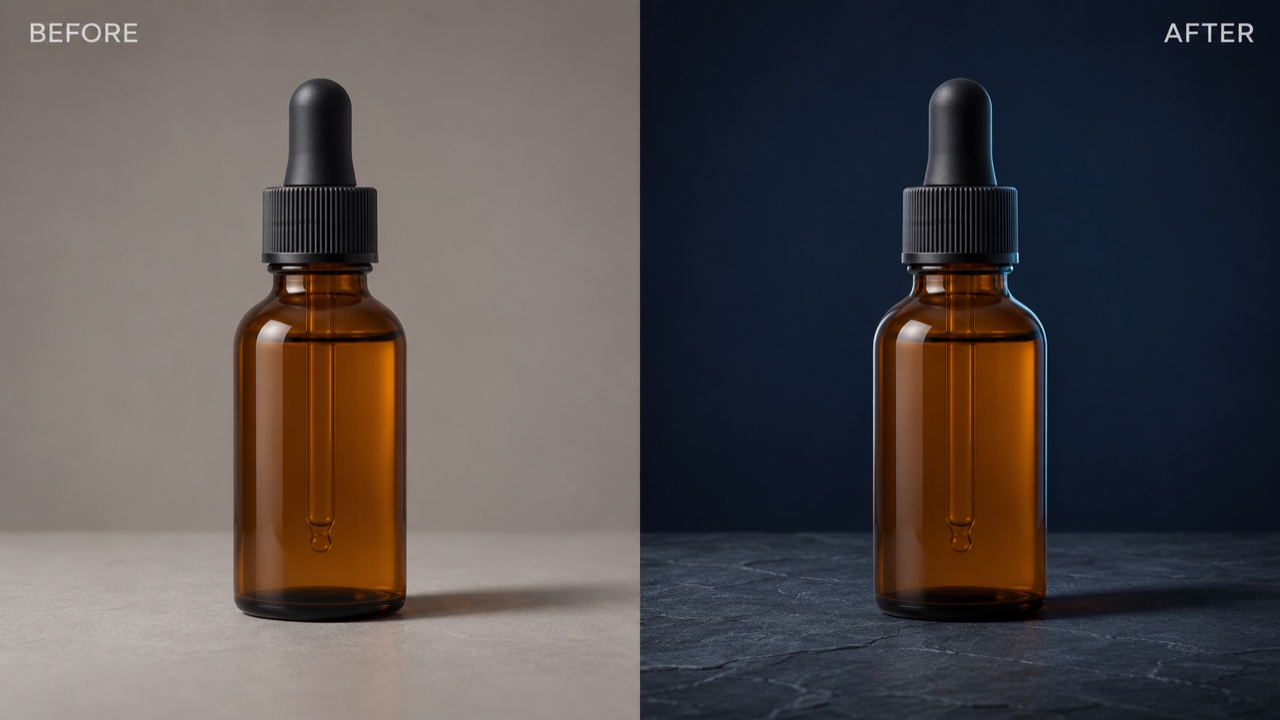
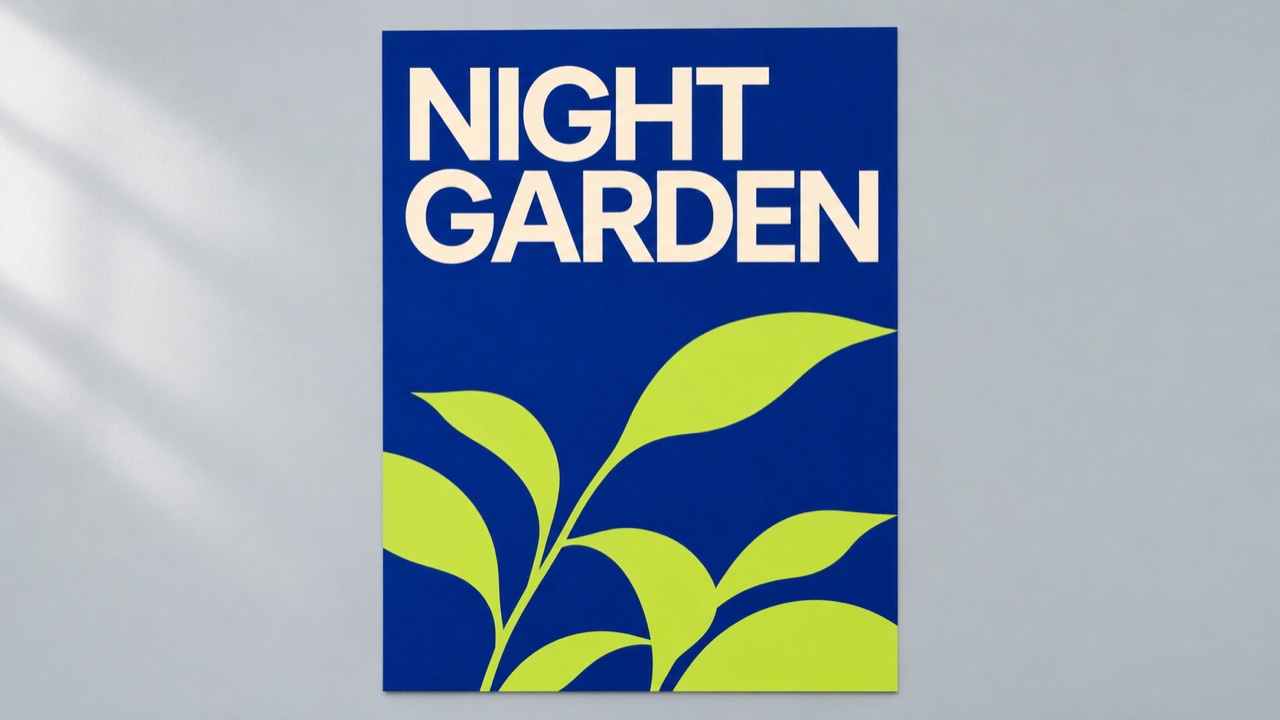
Explore product photography, background editing, and poster concepts in Seedream 5.5 Prompt Guide. Open a card to read and copy the prompt, then replace the details with your own brief. Seedream 5.5 Prompt Guide connects these examples with an online prompt generator, so you can start from an existing idea or develop three new directions.
Photorealistic Street Portrait After Rain
A cinematic street portrait of a woman outside a bakery featuring high-contrast warm and cool lighting with natural textures and film grain.
Seedream 5.5You’ve reached the end.
Begin with an example when you need inspiration, or enter your idea to generate three options. Seedream 5.5 Prompt Guide keeps both paths connected to the same process: choose, customize, create, and refine. Return to Seedream 5.5 Prompt Guide whenever your Seedream 5.5 Prompts need a more deliberate direction.

Open a card to read its prompt, or describe your concept in the generator above. Seedream 5.5 Prompt Guide lets you begin with a subject and intended use, such as a product hero image or a botanical poster. Compare the available Seedream 5.5 Prompts by composition, lighting, and style, then select the version closest to your goal.

Replace the subject, setting, materials, colors, and framing with your own choices. Seedream 5.5 Prompt Guide encourages you to preserve useful structure without repeating every creative detail of an example. For reference-based Seedream 5.5 Prompts, state which image provides the subject and explain what should change. Keep preservation instructions separate from the edit itself.

Open the Seedream 5.5 image workspace, paste your customized prompt, and add a reference when needed. Seedream 5.5 Prompt Guide prepares the written direction; image generation happens in the workspace. Review the available output settings and cost before submitting your Seedream 5.5 Prompts. Check the result against the brief rather than judging it only at thumbnail size.

Choose the most important improvement and revise the relevant instruction. Seedream 5.5 Prompt Guide makes iteration easier to track when you change one major variable at a time. Save successful Seedream 5.5 Prompts with their reference images, settings, and approved outputs. This gives future projects a useful starting point and helps collaborators understand why a version worked.
Develop an original image, adapt a visual example, or plan a precise reference edit. Seedream 5.5 Prompt Guide turns these tasks into readable instructions you can refine. The illustrations below show creative directions for Seedream 5.5 Prompts; they are not results from a new model test.
Move from a rough idea to a prompt you can actually use. Seedream 5.5 Prompt Guide brings examples, structured drafting, and image-focused guidance into one workflow, helping you prepare Seedream 5.5 Prompts without starting from a blank page.
Choose an example close to your project or describe a simple idea in the generator. Seedream 5.5 Prompt Guide helps you identify the main subject, the intended composition, and the feeling of the image before adding detail. Use the ready-to-copy Seedream 5.5 Prompts as starting points for product visuals, editorial artwork, or reference edits. You can then spend your time making creative choices instead of deciding how to begin.
The prompt generator creates three written variations from your idea. Seedream 5.5 Prompt Guide gives you a practical way to compare the subject treatment, light, materials, and framing before selecting one. Read the Seedream 5.5 Prompts separately and choose the clearest direction for your goal. Combining every variation can introduce conflicting instructions; one strong visual idea is easier to develop.
Keep the structure that works and replace the details that belong to the original example. Seedream 5.5 Prompt Guide helps you adapt a product brief for a new object, change a poster palette, or refine an image-editing instruction. Reusable Seedream 5.5 Prompts make the relationship between subject, setting, lighting, and constraints easy to see. Save your preferred version as a starting point for similar projects.
Review your wording before you move into the image workspace. Seedream 5.5 Prompt Guide helps you distinguish what should be created, what should change, and which reference details should remain. Clearer Seedream 5.5 Prompts give each test a purpose: improve the crop, simplify the scene, or change the background. Check the selected settings and request cost in the workspace before generating.
Find practical answers about examples, templates, the prompt generator, reference images, and revisions. Seedream 5.5 Prompt Guide keeps each answer tied to the next step in your image workflow.
Seedream 5.5 Prompt Guide helps you browse image ideas, generate three prompt options, customize a useful structure, and prepare a brief before image generation. Start with the example closest to your project or describe your own concept. The goal is a clear direction you can review and reuse.
Browse the examples or use the generator to develop three prompt directions. Seedream 5.5 Prompt Guide helps you choose one, refine the visual details, and prepare your next image in Seedream 5.5. Save the structure that works and return to Seedream 5.5 Prompt Guide when you need a fresh variation for a new project.